


xAI Grok June 2026. User guide for xAI Grok in June 2026.
US News
Lefties Losing It
Angelic Scorn Opinions
Angelic Universe Music
Angelic Scorn site
Angelic Scorn Search
AS AI Studios
New Music
Future Watch
Faith Saterday
Grok 4.x based on V9 (1.5T parameters)
User Guide will be created after the release.
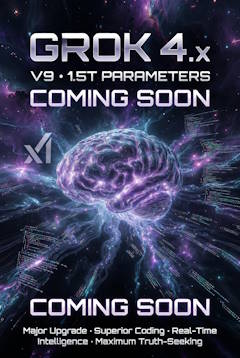
User Guide will be created after the release.
Grok for Word Training Manual
Grok for Word Training Manual
Free Microsoft 365 Add-in (launched June 18, 2026) Overview
Grok for Word brings a powerful, conversation-based AI agent directly into Microsoft Word as a sidebar panel. It turns rough notes into polished documents, rewrites and formats text, conducts web/X research, generates diagrams/tables, and integrates with your email, SharePoint, or Google Drive via Grok connectors. All changes happen in place in your live document (with trackable revisions), so you stay in control. It’s free to install and works with an active xAI subscription (SuperGrok, Heavy, Business, or Enterprise plans; usage limits apply).
x.ai
1. Installation & Setup
- Open Microsoft Word (desktop or web version with Microsoft 365).
- Go to Home tab → Add-ins (or Insert → Add-ins).
- Search for “Grok by SpaceXAI for Word” (or “Grok for Word”).
- Click Add → Continue (accept permissions: read/make changes to document + send data over internet).
- Once installed, Grok appears on the Home ribbon.
- Click the Grok button to open the sidebar panel.
- Sign in with your xAI account (one-time).
Admin Note: Organization admins can deploy it centrally via Microsoft 365 admin center.
x.ai2. Interface Basics
- Sidebar Chat Panel: Type natural-language prompts.
- Document Awareness: Grok sees your full document or selected text.
- In-Place Editing: Changes insert or replace directly (with before/after previews and Track Changes-style revisions).
- Undo Safety: Every edit is reversible.
- Connectors: Pull in data from emails, SharePoint, Google Drive.
3. Core Features & How-To GuidesA. Transform Rough Notes into Structured Documents
- Paste or type bullet-point notes, meeting summaries, or ideas into the chat.
- Example prompts:
- “Turn these notes into a professional 5-section report with headings, bullet points, and executive summary.”
- “Expand this outline into a full project proposal in formal business tone.”
- Grok outputs real Word headings, lists, tables — directly into the document. x.ai
B. Rewrite, Edit & Improve Existing Text
- Select text in the document → ask Grok to:
- “Rewrite this paragraph for clarity and concision.”
- “Fix grammar and improve professional tone.”
- “Make this section more persuasive.”
- Grok shows before/after and applies changes with visible revisions you can accept/reject. x.ai
C. Consistency & Style Alignment
- “Normalize all headings to Title Case and consistent styles.”
- “Align terminology across the whole document (use ‘AI assistant’ instead of Grok).”
- “Ensure consistent voice and formatting throughout this 20-page report.”
Grok scans the entire file and makes uniform changes in one pass. x.ai
D. Research & Bring in External Content
- “Research latest statistics on AI adoption in 2026 and add a section with sources.”
- “Search X for recent discussions on [topic] and summarize key points.”
- “Generate a diagram illustrating our workflow and insert it here.”
- Grok pulls real-time web/X data and inserts citations, tables, or images. x.ai
E. Use Connectors (Email, SharePoint, Google Drive)
- Connect your accounts once in Grok settings.
- Prompts like:
- “Draft a summary using key points from my last 3 emails about Q3 planning.”
- “Incorporate data from the latest SharePoint report on sales metrics.”
F. Advanced Tasks
- Generate outlines, tables, or full sections.
- Summarize long reports.
- Expand ideas or create speaker notes (great when combined with Grok for PowerPoint).
4. Best Practices & Prompting Tips
- Be specific: Include desired length, tone, format, audience.
- Reference selections: “Using the selected paragraph…”
- Iterate: Continue the conversation in the same thread — Grok remembers context.
- Use revisions: Always review changes before accepting.
- Combine with other Grok tools: Generate images/videos via Grok Imagine and insert them.
5. Related Tools (June 2026 Releases)
- Grok for PowerPoint (recent): Turn outlines into full decks with research, images, diagrams, and theme consistency. Same sidebar workflow. x.ai
- Grok on Databricks (June 18): Enterprise agents using your own data + Grok models in Agent Bricks. x.ai
- Grok 4.3 on Amazon Bedrock (June 17): 1M token context, low hallucinations, strong tool calling for production apps. x.ai
- Grok Imagine Video 1.5 (June 16): Enhanced image-to-video with better physics and workflow tools.
6. Troubleshooting & Support
- Sidebar not appearing? Restart Word or check ribbon.
- Sign-in issues? Ensure active xAI subscription.
- Limits: Check your plan usage on x.ai.
- Help: Visit x.ai or the Microsoft Marketplace page.
Official Links
- Install: Microsoft Marketplace
- xAI Page: x.ai/grok/word
- News: x.ai/news/introducing-word-addin
xAI Grok for PowerPoint Training Manual
xAI Grok for PowerPoint Training Manual
PowerPoint Presentation Deck (Ready to Copy into PowerPoint)Here’s a complete, professional training manual structured as a 15-slide PowerPoint deck. You can copy-paste this directly into PowerPoint. Suggested layout: Use a clean modern theme (dark background with xAI blue/white accents).
Slide 1: Title Slide
- Title: Grok for PowerPoint Training Manual
- Subtitle: Unlock AI-Powered Presentations with xAI
Free Microsoft 365 Add-in – Launched June 16, 2026 - Your Name / Date: [Your Name] | June 2026
- Visual: xAI Grok logo (center or top)
Slide 2: Agenda
- Welcome & Overview
- Installation & Setup
- Core Features Walkthrough
- Hands-On Prompt Examples
- Best Practices & Tips
- Integration with Other Grok Tools
- Troubleshooting & Support
- Q&A
Slide 3: What is Grok for PowerPoint?
- Free Microsoft 365 add-in from xAI
- Brings a full AI agent sidebar directly inside PowerPoint
- Turn outlines into complete decks
- Research, write, design, and refine without leaving the app
- Works with real editable slides + reversible changes
Key Benefit: Stay in your flow — Grok handles research, content, visuals, and structure.
Slide 4: Key Capabilities
- Generate full slide decks from outlines
- Add research from web, X, email, SharePoint, or Google Drive
- Create diagrams, tables, and images
- Improve slide narrative, design, and consistency
- Generate speaker notes
- Reorganize, expand, or tighten decks with one command
Slide 5: Installation & First Setup
- Open PowerPoint (Desktop or Web – Microsoft 365)
- Go to Insert → Add-ins → Search “Grok by SpaceXAI for PowerPoint”
- Click Add → Sign in with your xAI account
- Pin the Grok sidebar from the Home ribbon
- (Admins: Deploy via Microsoft 365 Admin Center)
Requirements: Active SuperGrok, Heavy, Business, or Enterprise plan.
Slide 6: The Grok Sidebar Interface
- Chat-style conversation panel
- Full awareness of your entire deck
- Before/After previews for every change
- Direct insertion onto slides
- Undo-safe editing
Pro Tip: Keep the sidebar open on the right while building.
Slide 7: Feature 1 – Outline to Full Deck
Example Prompt:
“Create a 12-slide professional presentation on ‘Grok 4.3 Enterprise Capabilities’ using this outline: [paste outline]. Include agenda, key features, benefits, case studies, and conclusion. Modern dark theme.”Grok generates:
- Title slides
- Content slides with bullet hierarchy
- Suggested layouts
- Placeholder images/diagrams
Slide 8: Feature 2 – Research & Real-Time Content
Strong Prompts:
- “Research latest 2026 statistics on AI adoption and add a data slide with sources”
- “Pull recent X discussions about Grok on Bedrock and summarize in 3 bullets”
- “Insert a comparison table: Grok 4.3 vs competitors”
Grok adds citations automatically.
Slide 9: Feature 3 – Design & Polish
- “Apply consistent corporate branding and modern layout to all slides”
- “Make this slide more visually engaging – add icons and better hierarchy”
- “Tighten the narrative on slides 5-8 for executive audience”
- “Generate speaker notes for the entire deck”
Slide 10: Feature 4 – Connectors & Data IntegrationConnect once:
- SharePoint
- Google Drive
Prompt Examples:
- “Summarize key points from my last 5 emails about Q3 strategy and create slides”
- “Incorporate sales data from the latest SharePoint report”
Slide 11: Prompting Best Practices
Do:
- Be specific (tone, length, audience, style)
- Reference slides: “Improve slides 3-7…”
- Iterate in the same chat thread
- Ask for before/after options
Example Strong Prompt: “Turn the selected text into a compelling 4-slide section with visuals, using a professional consulting tone.”
Slide 12: Integration with Other xAI Tools
- Grok for Word → Export outlines/content
- Grok Imagine Video 1.5 → Add animated visuals
- Grok 4.3 on Bedrock / Databricks → Enterprise data agents
- Grok Build → Advanced automation
Slide 13: Real-World Use Cases
- Sales pitch decks
- Executive briefings
- Training & workshop materials
- Product launch presentations
- Research summaries
Time Saved: Users report 60-80% faster deck creation.
Slide 14: Troubleshooting
- Sidebar missing? Restart PowerPoint or check ribbon
- Sign-in error? Verify xAI subscription
- Slow responses? Check internet + usage limits
- Need help? Visit x.ai/grok/powerpoint
Slide 15: Thank You + Next Steps
- Action Items:
- Install Grok for PowerPoint today
- Try your first outline-to-deck
- Explore Grok for Word & Excel
- Questions?
- Official Links:
- Add-in: Microsoft Marketplace
- xAI Page: x.ai/grok/powerpoint
Thank You! Let’s build better presentations faster.
How to build this deck quickly:
- Copy the slide titles and bullets above into a new PowerPoint file.
- Use a dark theme with xAI branding colors.
- Insert the images I provided where noted.
- Add simple animations (Fade on bullets).
How to create an image with Grok
How to Generate Images with Grok
- Just ask Grok directly — You can say:
- “Generate an image of…”
- “Create a picture of…”
- “Make an image showing…”
- For better results, use detailed prompts (I’ll show you 5 strong examples below).
- Extra Controls you can add:
- –style (cinematic, realistic, anime, oil painting, etc.)
- –aspect or aspect ratio (16:9, 9:16, 1:1, 3:4, etc.)
- “in the style of [artist]”
- “highly detailed, 8k, masterpiece”
5 Powerful Prompt Examples for Grok Imagine
1. Epic Fantasy Scene
A majestic black dragon with glowing purple eyes perched on a floating ancient castle in the sky at sunset, dramatic god rays, cinematic lighting, ultra-detailed scales, mist and clouds below, epic fantasy style, masterpiece, 8k --ar 16:92. Futuristic Cyberpunk Character
Beautiful cyberpunk girl with neon pink hair, glowing cybernetic eyes, wearing high-tech jacket, standing in a rainy Tokyo street at night, reflections on wet ground, blade runner aesthetic, ultra realistic, cinematic, dramatic lighting --ar 9:163. Surreal Dreamlike Scene
A giant glowing library floating in space, books flying out turning into stars and galaxies, ethereal lighting, magical atmosphere, surreal art style by Studio Ghibli and Salvador Dalí, highly detailed, dreamlike --ar 3:44. Professional Product / Marketing Image
Luxury black sports car driving on a futuristic highway at golden hour, mountains in background, dramatic side view, cinematic color grading, photorealistic, commercial photography style, sharp details, 8k --ar 16:95. Motivational / Inspirational Poster
A powerful female warrior standing on a mountain peak at sunrise, holding a glowing sword, wearing futuristic armor, epic back view, motivational atmosphere, "The Future Belongs to the Bold" written in elegant font, cinematic, ultra detailed, heroic --ar 9:16How to create a scene with Grok
How to Create a Scene with Grok
- Just describe the scene you want in detail.
- Be specific about: subject, environment, mood, lighting, camera angle, style, and quality.
- You can say:
“Create a scene of…” or “Generate an image of…”
Pro Tips for Better Scenes:
- Add mood/lighting (dramatic, golden hour, neon, misty, etc.)
- Specify camera angle (wide shot, close-up, aerial view, low angle)
- Mention art style or reference (cinematic, photorealistic, anime, etc.)
- Add –ar 16:9 for landscape, –ar 9:16 for portrait, etc.
5 Powerful Scene Prompt Examples for Grok
1. Epic Fantasy Battle Scene
A dramatic wide-angle cinematic scene of an epic battle between a glowing golden knight on a white horse and a massive shadow dragon breathing purple fire, ancient ruined temple in the background, stormy sky with lightning, volumetric god rays breaking through clouds, ultra realistic, highly detailed, cinematic lighting, masterpiece, 8k --ar 16:92. Cyberpunk City Street Scene
Neon-drenched cyberpunk street at night, heavy rain, flying cars and holograms everywhere, beautiful female samurai with glowing katana standing in the middle of the street, reflections on wet ground, dense fog, blade runner 2049 style, ultra detailed, atmospheric lighting, cinematic --ar 16:93. Peaceful Fantasy Nature Scene
Serene magical forest at sunrise, ancient glowing trees with floating lanterns, crystal clear river flowing through, deer drinking water, soft golden morning light filtering through leaves, whimsical and peaceful atmosphere, Studio Ghibli + realistic style, highly detailed, ethereal --ar 3:44. Futuristic Sci-Fi Space Scene
A massive futuristic spaceship docking at an enormous orbital space station above Earth at sunset, Earth glowing with city lights, stars and nebula in the background, dramatic rim lighting, cinematic sci-fi, ultra realistic, IMAX quality, intricate details --ar 16:95. Mysterious Horror Scene
Abandoned Victorian mansion at midnight during a thunderstorm, lightning illuminating broken windows, ghostly silhouettes inside, overgrown garden with dead trees, dark moody atmosphere, horror cinematic style like The Conjuring, ultra detailed, creepy fog, dramatic lighting --ar 9:16How to keep a character consistent with Grok
Best Methods for Character Consistency in Grok Videos
- Create a Master Character Reference (Most Important Step)
- First generate 1–7 high-quality reference images of your character (different angles, poses, expressions).
- Upload these as image references when generating video.
- Use Image-to-Video (I2V) instead of pure text-to-video.
- Always include a strong “Character Lock” phrase in every prompt.
- Chain clips by using the last frame of one video as the starting image for the next.
- Upload multiple references (Grok supports up to 7 images).
5 Powerful Prompt Examples for Consistent Characters
1. Basic Character Lock (Single Reference)
Use this uploaded reference image as the exact character [describe character briefly].

Keep the exact same face, hair, eye color, body type, clothing, and age. Do not change any facial features.

The character is walking confidently through a busy futuristic city street at night, neon lights reflecting on wet ground, cinematic camera movement, smooth motion, high detail, realistic lighting.
2. Multiple Reference Images (Best Consistency)
Use all 5 uploaded reference images as strict character references. Maintain 100% consistency in face, hairstyle, body proportions, clothing details, and skin tone across every frame.

Scene: The same female warrior is fighting a group of shadow creatures in an ancient forest, dynamic combat movements, dramatic lighting, cinematic slow-motion shots, epic atmosphere, fluid animation.
3. Character DNA + Action Scene
Character DNA: A 28-year-old Asian man with sharp jawline, short black hair with silver streaks, piercing dark brown eyes, wearing a black leather jacket with red accents and scars on his left cheek.

Keep this exact appearance in every frame.

He is driving a futuristic motorcycle at high speed through a cyberpunk Tokyo alley at midnight, rain pouring down, intense chase scene, dynamic camera angles, motion blur, ultra realistic.
4. Multi-Scene Story Consistency
Maintain perfect character consistency using the uploaded reference images.

Scene 1: The young detective (same face, outfit, hairstyle) enters a dark abandoned mansion, cautious expression, flashlight in hand, creepy atmosphere.

Smooth transition to Scene 2: Same character discovering an ancient artifact, surprised expression, cinematic lighting.
5. Extended Video / Chaining Prompt
Use the last frame of the previous video + these character reference images.

Keep the exact same character appearance, clothing, and lighting style.

Continue the story: The hero now jumps from the rooftop to another building, parkour movement, dramatic sunset background, intense action sequence, fluid motion, cinematic quality.
Pro Tips for Maximum Consistency
- Always start with “Use the uploaded reference image(s) as the exact character. Keep 100% consistency in face, hair, body, and clothing.”
- Generate a Character Bible (multiple angles + expressions) first.
- Use “exact same appearance”, “identical face”, or “do not change facial features” in prompts.
- For longer videos: Generate short clips and stitch them using the last frame as the new reference.
[…] Grok June 2026 Guide […]